Compositor view
Log composition
Log composition is performed graphically in compositor tracks, or manually via Composite Log Editor. Compositor tracks can be opened in two ways: via the Log Composition form in the 1D Model > Log Composition sub-strip, or by manually adding a compositor track to a Well View using the Add compositor option of the track context menu in the Template Editor.
Creating these composite logs is an important step in your work, as data from the raw logs is not passed into the various modeling workflows until a composite is created. Thus, even if there is only one raw log of a given log type in your solution, you must create the compositor from it in order for the data to be used in the workflow calculations.
When composing a log you can choose to take the entire raw log or you can stitch together pieces from multiple raw logs. A composite log can be created for any available log type.
In order to use start log composition process, Editing Tools panel should be opened and Create Composite Log tool should be activated. See more details in the Graphically creating composite logs in the Well View.
Creating a composite log from a single raw log
Creating a composite log from the entirety of a single raw log is a straightforward task. Simply activate Create Composite Log tool in Editing Tools and double-click on the raw log in the left track to generate the composite in the right track. An example of this is seen in the image below, where the entire RHOB log has been selected as the density composite. In this case, all of the data from the raw log is used to create the composite.
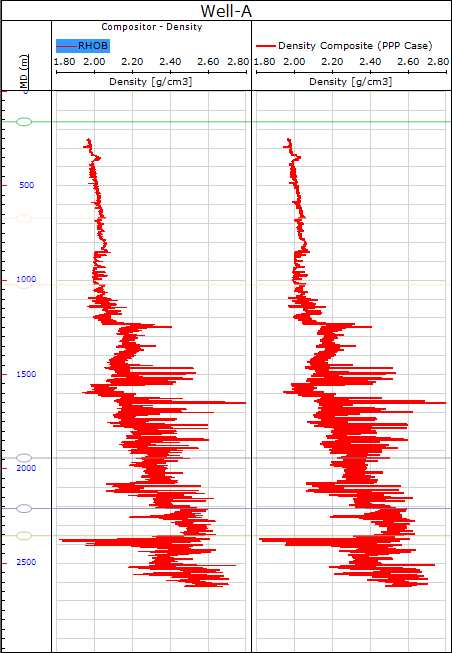
Log composition using the entire raw log click to enlarge
Creating a composite log from partial or multiple raw logs
When multiple raw logs are available, or if you do not want to use all of data from a single raw log, you can select the data by using the selection box. To create a selection box, activate Create Composite Log tool in Editing Tools, click in the track near the starting depth of the desired data range and drag to the final depth in the range. To create the composite log from the selected range, double click on the data inside the selection box. In the example below, a single raw log is available for the resistivity composite, but the spike at the beginning of the log needs to be excluded. The selection box has been created such that the spike is excluded from the final result.
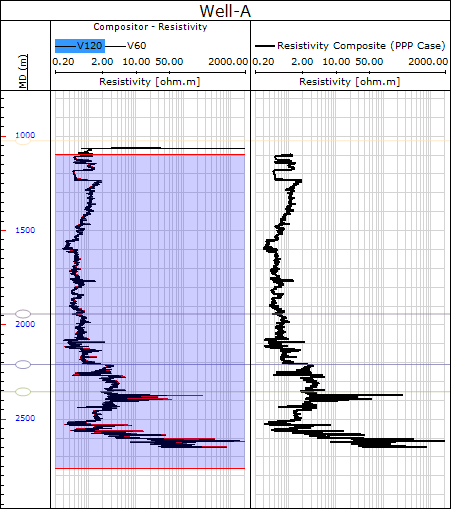
Log composition using only a particular interval of the raw log click to enlarge
If you have multiple raw logs, inspect which intervals of which logs you want to combine. After deciding which intervals should be stitched together to create the final log, use the selection box to begin your composition. Start by dragging a selection box around the most shallow interval that you want to use and double click inside the selection box to select the data. As you move deeper through the raw logs using the selection boxes to select the specific intervals of interest, ensure that there is always a slight overlap of selection boxes so as to avoid gaps in your composite log. An example of this is seen in the image below, where the beginning section of the composite log has been selected (the orange log in the right track). In this example the mouse cursor is positioned at a depth where a slight overlap will occur between the existing selection box and the one about to be created.
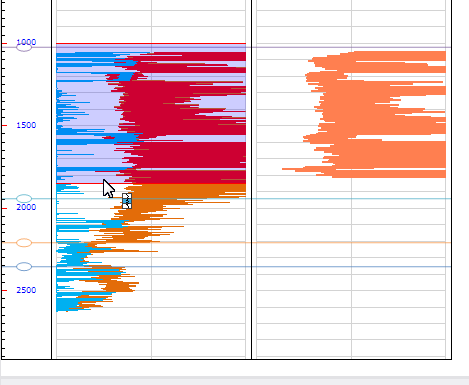
Example of log composition from multiple raw logs. Here you can see that the mouse cursor is positioned at the depth where the next selection box will begin. The overlap between the ending and starting depths of two selection boxes ensures that no gaps will occur in the final composite log. click to enlarge
A single left-click outside of the selection box clears it from the track. For example, if you have a selection box drawn from 250-500 MD, clicking in the track around 650 MD removes the selection box from the track.
Keep in mind that you can re-generate the composite curve by repeating the procedure. A newly selected log overwrites any previous selections for that range or for entire logs if you are composing from a single log.
The composite log updates as long as you select the end point of the real time source log during composition. You can do this in two ways:
- Select the entire real time log as the source log, or
- Select the end of the real time source log as part of the composition.
The image below shows a selection that ensures that real time updates are made to the composite log. In this case, the red log is the real time log. As you can see, the selection window goes well passed the end of the real time log. When the red log is double clicked for composition, real time updates are activated for the composite log.
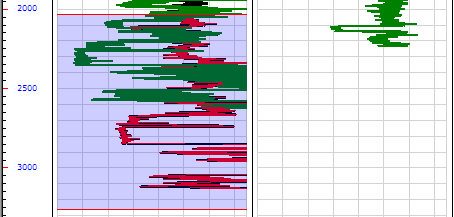
To ensure real-time updates for a log are propagated on the composite, make sure to select the end point of the log, as shown in this image click to enlarge
Restarting or removing a composite log
If you need to remove or restart a log composition you can do so by deleting the composite log from the JewelExplorer via the right-click context menu for the log.
Removing the composite log directly from the JewelExplorer also deletes the composite log from the Compositor Track and deselects it on the Log Composition form. Once deleted, you can begin a new log composition.